
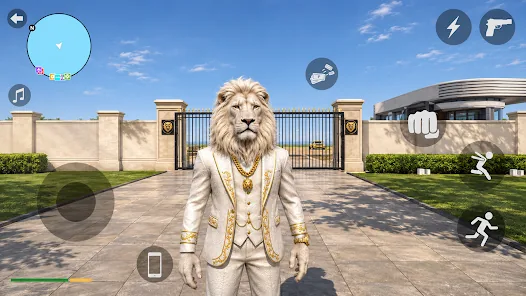
If this is your first time playing Sheru Bhai Life Simulator Game, start by learning the main locations and phone apps. The developer describes simple touch controls for walking, running, driving and flying. Exact button positions can vary by version and device.
1. Confirm that you have the Skorax version
The guide covers Sheru Bhai Life Simulator Game by Skorax, package ID com.Skorax.SheruBhaiGame. Check the full title and developer name on Google Play before following a tutorial. Other apps use similar Sheru Bhai names and may have different menus or features.
2. Get familiar with the on-screen controls
Skorax describes touch controls for four main actions:
- Walking around the island and mansion.
- Running to move around more quickly.
- Driving cars and riding bikes.
- Flying aircraft.
The public store description does not provide a complete button diagram or exact keyboard mapping. Start by checking the prompts visible in your installed game. If an update changes the interface, trust the current on-screen prompts rather than an older control guide.
3. Explore the Royal Hill mansion
Visit the mansion on Royal Hill and walk through its rooms. The developer's description mentions a master suite, office, guest room, marble floors, gold lion statues, a pool deck and a gold room. The description says room doors swing open as you walk through and the main gate slides open when you arrive on foot or by car.
Take a moment to look around before leaving. The mansion is also where the wardrobe is located.
4. Find the wardrobe and change your look
The wardrobe is described as being in the mansion's master bedroom. The official listing names these options:
- Suits: White Gold, White Classic and Black Premium.
- Glasses: gold aviators, black shades and diamond specs.
- Headwear: gold crown, diamond crown, black cap and white cap.
The exact interaction prompt can vary by version. Use the in-game prompt when you reach the wardrobe. See the outfit guide for the complete list.
5. Open the in-game phone
The phone menu is described as including four apps:
| App | What the developer says it does |
|---|---|
| Vehicle | Call cars, bikes and aircraft |
| Weapon | Pick weapons and change their colours |
| Bank | View Sheru Bhai's in-game fortune |
| Camera | Take photos and selfies around the island |
The Vehicle app is especially useful when you want to travel around the island. The Camera app lets you take photos and selfies at different locations.
6. Call a vehicle and explore
The Vehicle app is described as a way to call cars, bikes and aircraft to your location. The store listing names 15 luxury cars, superbikes, fighter jets, a large jet, a propeller plane and a helicopter. It also calls out two vehicles in Sheru Bhai's own designs.
Try a road vehicle first and follow the driving prompts shown on screen. When you are ready, explore the aircraft options. This is a suggested way to learn the vehicle categories, not a required mission sequence. Read the vehicle guide for more detail.
7. Explore the island
The developer lists highways, hill roads, sandy beaches, a beach island, an airport, a village, a stadium and a police station among the places to visit. Try different routes and use the Camera app to take photos. The description also mentions day, night, clouds and rain; it says the weather can change automatically or be selected in Settings.
8. Try the newer features
Skorax’s November update note on Google Play names Royal Convoy, Money Helicopter, Iron Suit, Shop and Football. The note does not explain detailed mechanics or unlock requirements. Check the update notes and the current in-game menus for what is available in your version.
Android and Windows PC controls
The Google Play listing describes touch controls for the Android game. A separate PC listing makes the game available through Google Play Games on compatible Windows computers and mentions an improved-controls experience, but it does not publish a complete keyboard or controller mapping. Do not assume the Android touch layout maps one-to-one to a keyboard. Follow the prompts in Google Play Games and the game itself.
Offline play and accounts
Skorax says the game supports offline play and does not require sign-up or an in-game account. You still need the relevant store connection to install or update the app. For supported platforms and system requirements, see the download guide.
What this guide does not claim
The developer's public description does not provide a verified mission order, hidden unlock requirements, exact keyboard shortcuts or a full controller layout. This is a getting-started overview based on the official store description, not a tested mission walkthrough. We avoid inventing objectives or control combinations; follow the current in-game prompts.